So you just found out you can make your own custom Hero Realms content with Lua, and you found your way here to figure out how. That is exciting! The process is not as mystical or intense as it may sound. There are some great resources, both people and documentation, out there with a lot of examples for you to get started. I find in the realm of learning something new and on the technical side of things, that the best way to start is by copying from someone who already knows what they are doing. I will be giving an introduction to a few of those people in the Realms Rising/Hero Realms community who have done an awesome job of being the tip of the spear for Lua script writing and making a really strong basis for the rest of us to launch from.
If you go to the linked page on the Wise Wizard Game’s website about how to get started in Lua, I assume you probably don’t know where that is but I will tell you a minute, you will find a few things, some example files to look at but most importantly you have a link to the “WWG Lua Effect Documentation” dropbox document. This document is maintained by WWG developers and is probably the single most important resource you will need. Bookmark it somewhere you can get to it often.
Here is the link to the WWG page
Required Reading
Now that you have the “Lua Effect Documentation” on hand, you need to scroll down to where it says “Requirements/How to Start” and begin reading and following the setup there (You might want to read it all a second time, too.) It contains directions on how to enable developer mode on a Steam HR client, as well as how to find the developer screen and how to manage your files there. You can stop when you finish the “Versioning” section. From that point forward in the document, it is more of a technical reference on the HR Lua engine. You should browse all the sections, but you don’t need to read them like a book. You will reference it all as you go. The HR Lua engine uses its own Lua functions, so you need to become familiar with them because you really won’t be able to just Google a solution with vanilla Lua.
A quick summary of things you should have done from the “How to get started” section
- Enable Developer Mode in the game settings
- Navigate to the script editor page
- Opened a Lua file for editing
You don’t need anything fancy to edit Lua files, but I recommend you use a code IDE that supports Lua file types. I use/recommend Visual Studio Code (VSCode) because it has all the bells and whistles and is free.
How to Get Help
Before I go any further, let me tell you how to get help getting started or having specific questions answered. If you dont use discord, you might have some trouble on this part. There are two different Discord servers (the WWG official one and the Realms Rising one) that have a channel dedicated to Lua development. The WWG server is the official one but is not the most active channel. The best one to use is the Realms Rising channel. There you will find (besides me, “Hello there”) both other players who make/refine/love custom HR content and some of the actual HR Digital developers themselves,s all who love answering questions. Here are the links to those channels.
This brings me to my first introductions. “The go to guy” for Lua help is the one and only RandomNoob (as he goes by in both discord and in-game!) He is the WWG developer who maintains the Lua document and manages the code for the Lua engine. He has certainly answered more of my own questions than I can remember, and goes above and beyond helping people out with making things with Lua. The best way I have found to get his attention is just to message him in the Lua Discord server.
The Lua Pioneer Players
Now, for my next round of introductions, two players have been trying to help people learn how to make things with Lua, Agentc13 and UserKaffe have been building a GitHub Repository full of working examples of Lua scripts that are well-documented and easy to use as templates. I used their stuff a lot when I started learning. I give them both a huge shoutout for being so community-minded. if you don’t know how GitHub works, that is not a problem; it is just a versioning system that lets multiple people contribute to the same files. You can just navigate the file paths and download the ones you want. If you are GitHub savvy, the repository is always looking for more contributors. Just message Agentc13 and ask about it.
Some Information About Art
The Lua Engine in Hero Realms does not support using custom art. Player icons as well as card layouts are limited to using art that is already in the game files. Fortunately, there is a list of all the art near the bottom of the Lua Documentation document (the one on Dropbox). Here are the first few as a reference on what to search for.
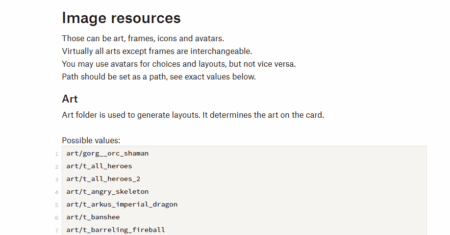
There are many more there.
Since it can be very tedious to code one art option and run the script to see what it looks like, there are a few tools you can use.
The Lua creator Aarkenell’s (another introduction) Art PDF. He took the time to screenshot every art from the Lua document and compiled it all into a PDF file so you can browse it. I saved it to my Lua GitHub repository so I could link it here. Feel free to snag it.
If you are not already aware, you can go to the in-game card gallery and see the art for every card in the game. It doesn’t give the art name, but you can sort of figure it out with guess and check, as well as looking at how the other art names are formatted.
Lastly, there is the card designer, a tool available on the development screen.
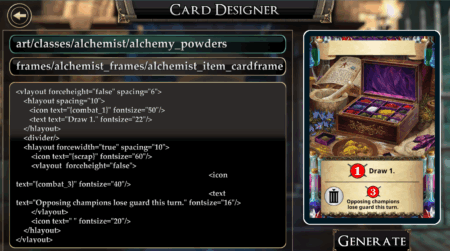
Here you can manipulate the XmlText to create an entire card. This can be a bit tricky a first, but there are some examples in the Lua Document that you can start with. The top row is the art, the middle row is the card border/frame, and the bottom large box is the text that generates the card text.
There is no way to “undo” changes to the text here, so be careful
How to Test/Upload a Script
- Once you have something you want to try out, you can click the “play” button to use offline characters to test with. You will have control over both players unless you set one of them to be an AI.

- If the script has any errors, you get red text similar to this that should help guide you to the line number that has the error.

- When you are ready, share the script with other people.
- You will need to click the “up arrow” icon and fill out the info to give the script a name (don’t upload something with an AI player in it, it won’t work later in pvp)
- Youth then need to verify the script but sending a challenge to another player and playing the game out to completion (Conceding does not count) so the game engine knows the script can be completed.
- Then you can challenge whoever you want, and other players can then save it to their favorites and do likewise.
- If you need to make any updates to the script in the future,
- Reupload it and reverify it every time.
- You should not make any changes to the file name or the folder the file is in on your computer because those 2 things are how the script uploader determines if a file is brand new or if you are trying to update an existing one.

What Comes Next?
You now have a ton of resources to leverage to start learning how to make Lua content. Feel free to ask anyone on Discord about any questions you have. My DM’s are always open too. I hope you come to love making things for the HR community as much as I do.
I am starting a “Lua Lesson” series of articles going over all the parts of Lua script development in small pieces. You can find the first one here.
Thanks for reading my entire article, and be sure to share it with all of your Hero Realms friends.
Title: Hero Realms Lua: Developer Edition
Category: Lua
Tags: #lua, #WardenSlayer
Published on: May 7, 2025
As a avid fan of both card/board games and coding projects, I probably have way too many side projects going at once. I do software development for work but still find time to find ways to contribute to the HR community. I guide others to a treasure I cannot posses, by hosting community events I can never win but I still enjoy hosting.
My current master plan is raising my two sons to play board games with me because most of my game playing friends have moved away.
